Previous Topic: Printing an Order
You can use one of two methods to enter the settlement screen:
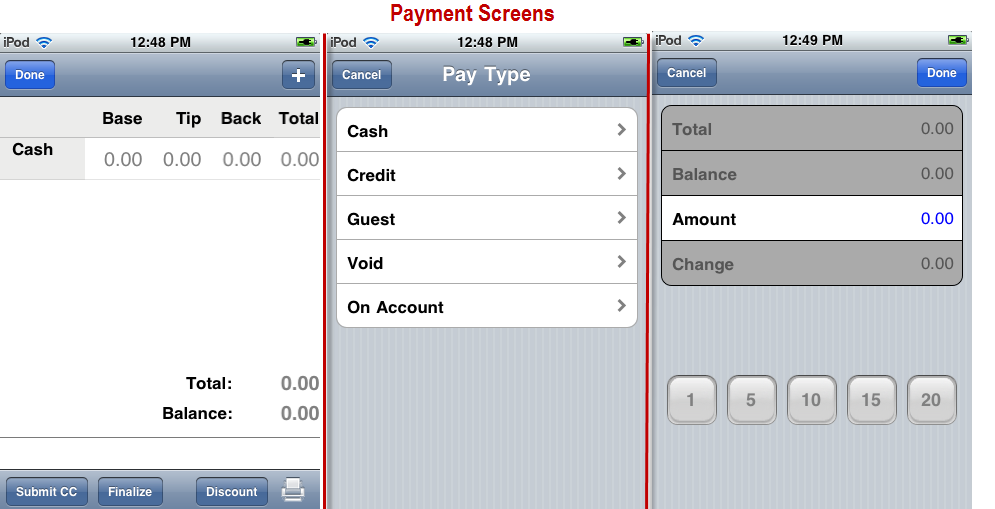
From the Table/Tab selection screen, select the table/tab you wish to settle, touch the [Actions] button at the bottom of the screen, and then press [Settle] on the command list. The dedicated settlement screen will appear.
Use the follow steps to add a payment
- the quick payment buttons at the bottom of screen
- Touch the “amount” field to activate the keyboard to manually enter a dollar amount. You will have to use the back space button to clear the amount field before manually entering a dollar amount. Use the [Return]button to submit entry.
You will have to repeat steps 1-4 when processing multiple forms of payments.
Tap in the box of the number you wish to change (Base Amount, Tip, Cash Back, Total), and fill in the new amount in the popup prompt window.
After adding a credit card pay type (if you have hardware that supports swiping of credit cards), you can submit the cards for authorization by tapping the [Submit CC] button. The settlement screen will automatically close to allow the credit card services to take over, submitting the card for authorization and printing credit card receipts.
After the customer adds a tip and signs his slip, you can then go back into the settlement screen to modify the payment with the tip and finalize the check.